
Merge JPG Files into One Image for Free
Merge JPG photos, screenshots, or scanned pages into one image. Choose a horizontal or vertical layout, set the order, and save the result.
An Online JPG Merger for Your Images
Use our JPG merger to combine JPG files into one image for sharing or reference. You can also merge JPEG files alongside JPGs in a horizontal or vertical layout.
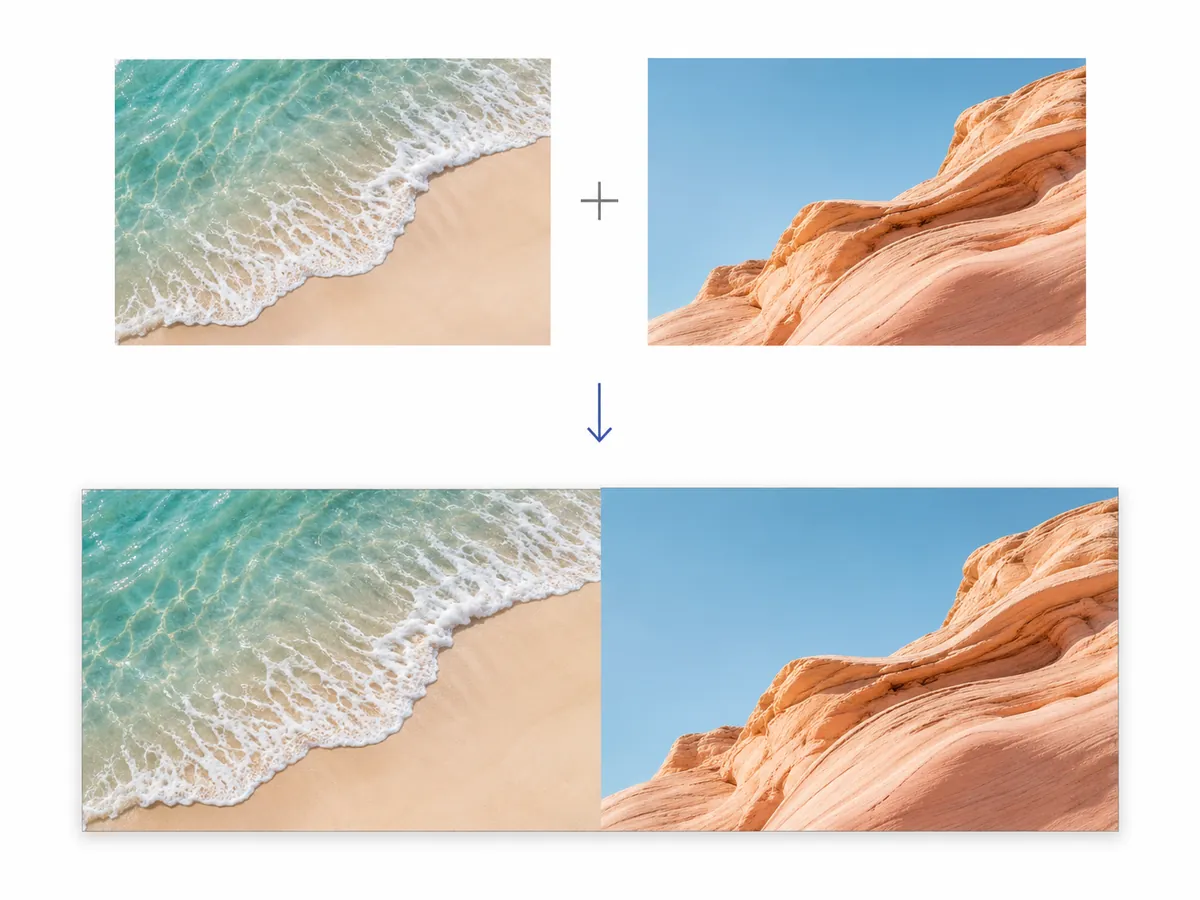

Multiple Images, One JPG
Merge JPG files into one image to keep related pictures together. The result opens as a single file, with everything arranged in the order you choose.

Side by Side or Top to Bottom
Place images next to each other for a comparison, or stack them vertically to create a sequence that reads from top to bottom.

JPG and JPEG Work Together
Files ending in .jpg and .jpeg use the same image format. This JPG and JPEG merger accepts both extensions without renaming or converting your files first.
Bring Images Together. Make Sharing Simpler.
Merge JPG files for easier sharing, clearer instructions, and quick comparisons. All processing happens locally in your browser.

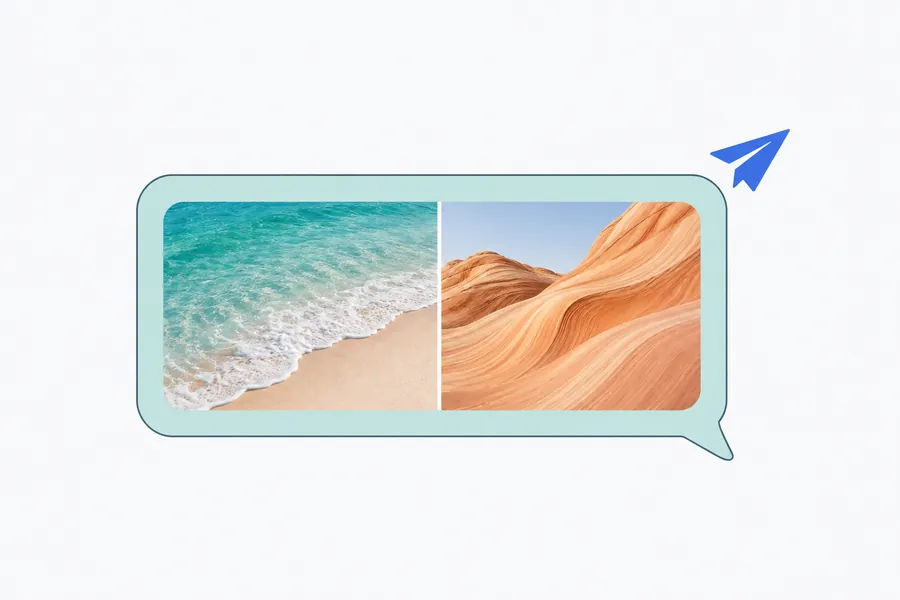



Made for Everyone Who Works with Images
From class notes to client presentations, MergeAnything makes it easy to merge JPG files into one image. See how it fits into your day.
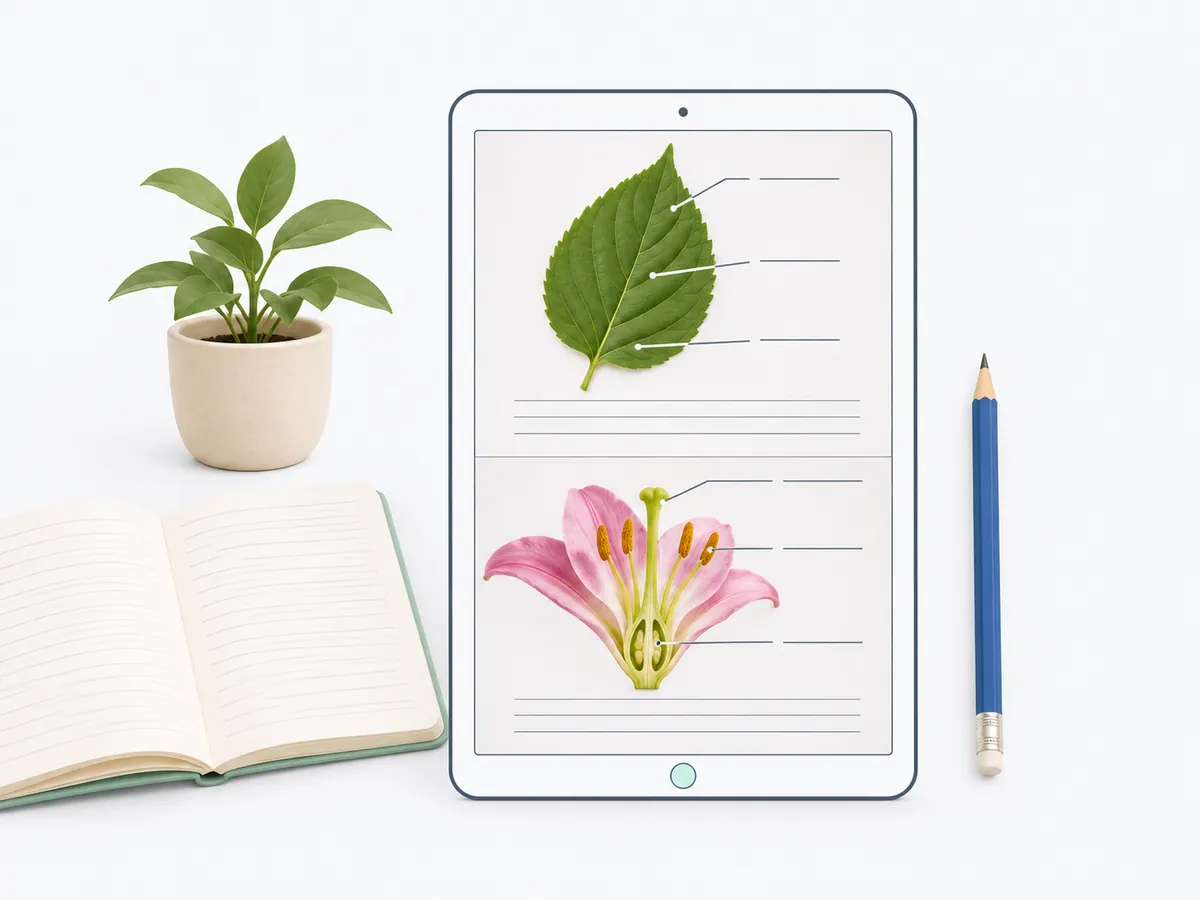

Students and Teachers
Merge JPG scans of notes, handwritten pages, and lesson materials into a study sheet. Arrange the pages in reading order to share class notes or send examples to your students.
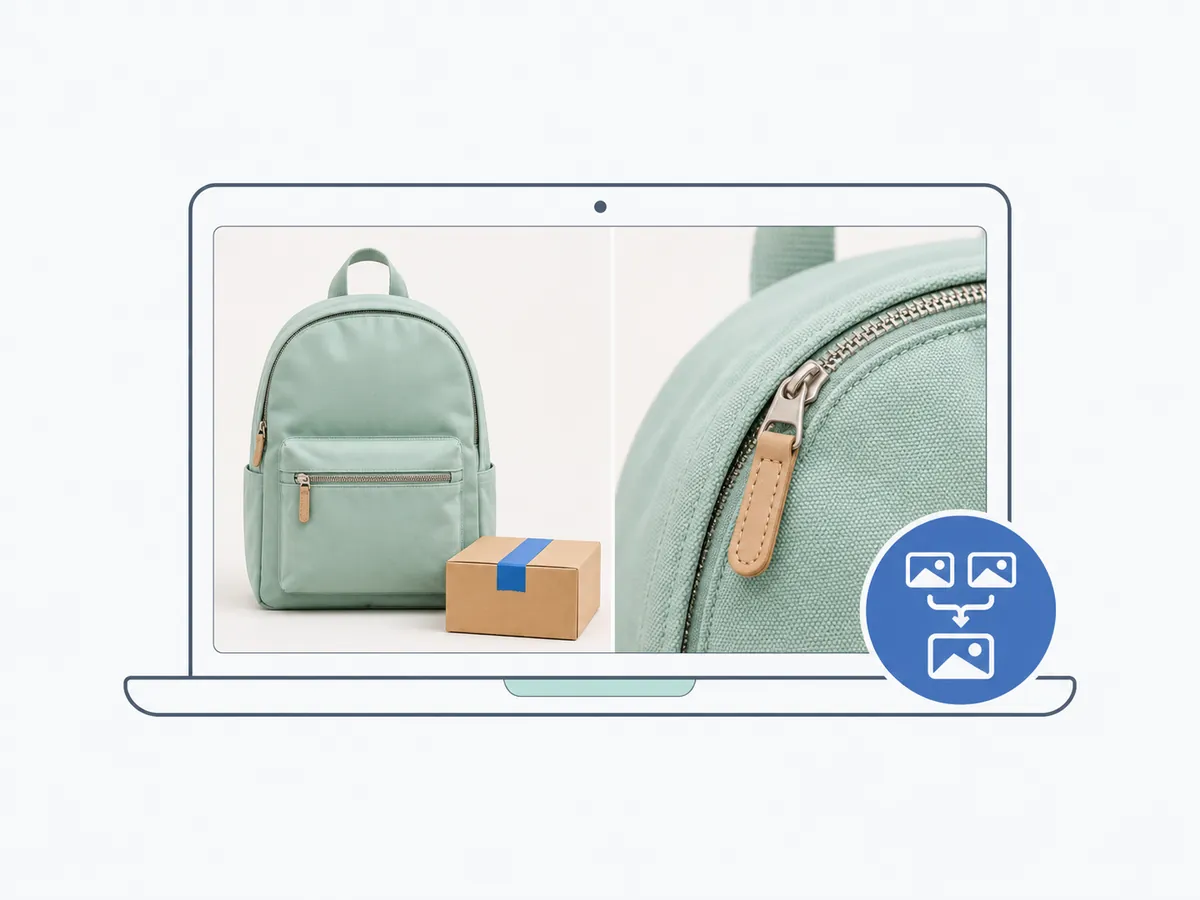

Online Sellers
Give customers a closer look at what you sell. Combine JPG product photos to show different angles, highlight details, or compare colors in a single image you can send with your reply.
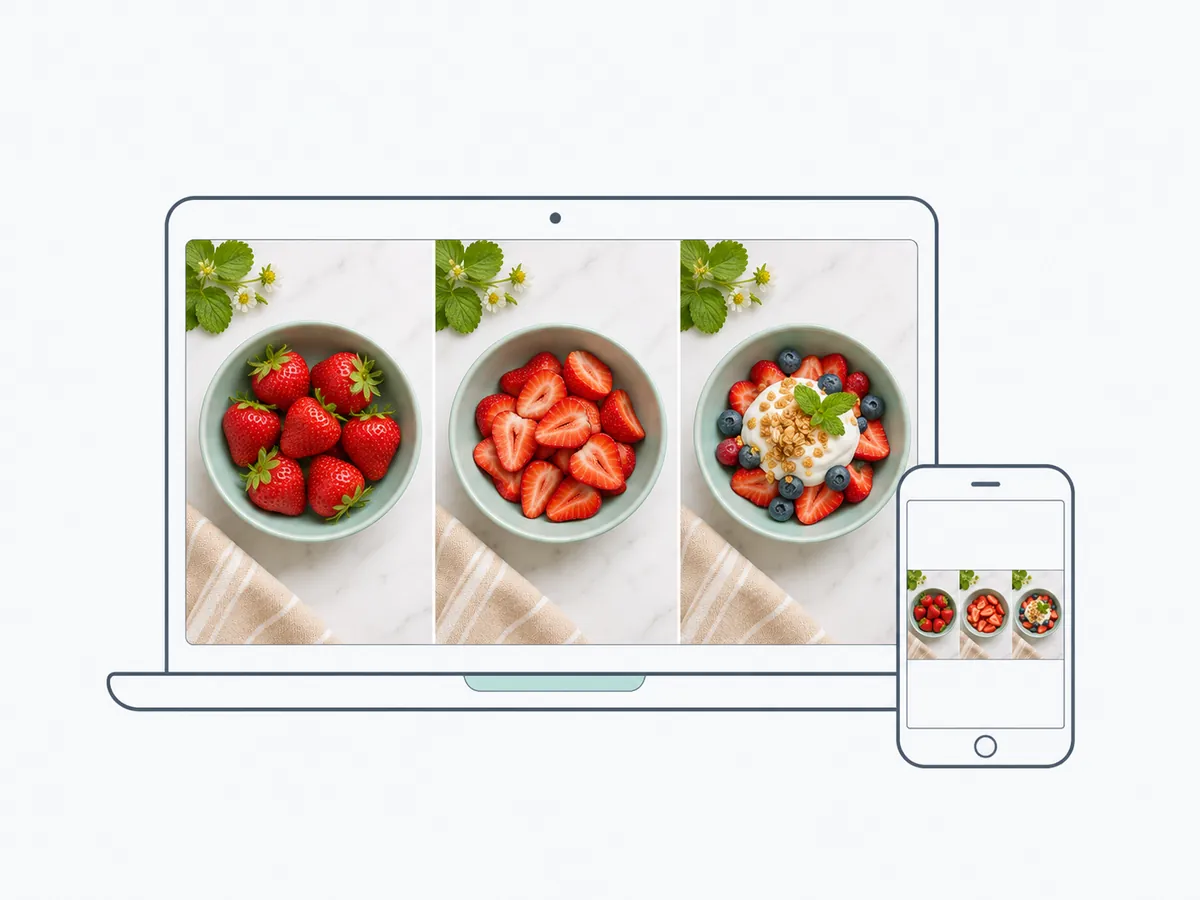

Content Creators
Merge JPG photos and screenshots for your next post or tutorial. Arrange them horizontally for a visual comparison, or stack them vertically to walk your audience through a process.

Designers and Photographers
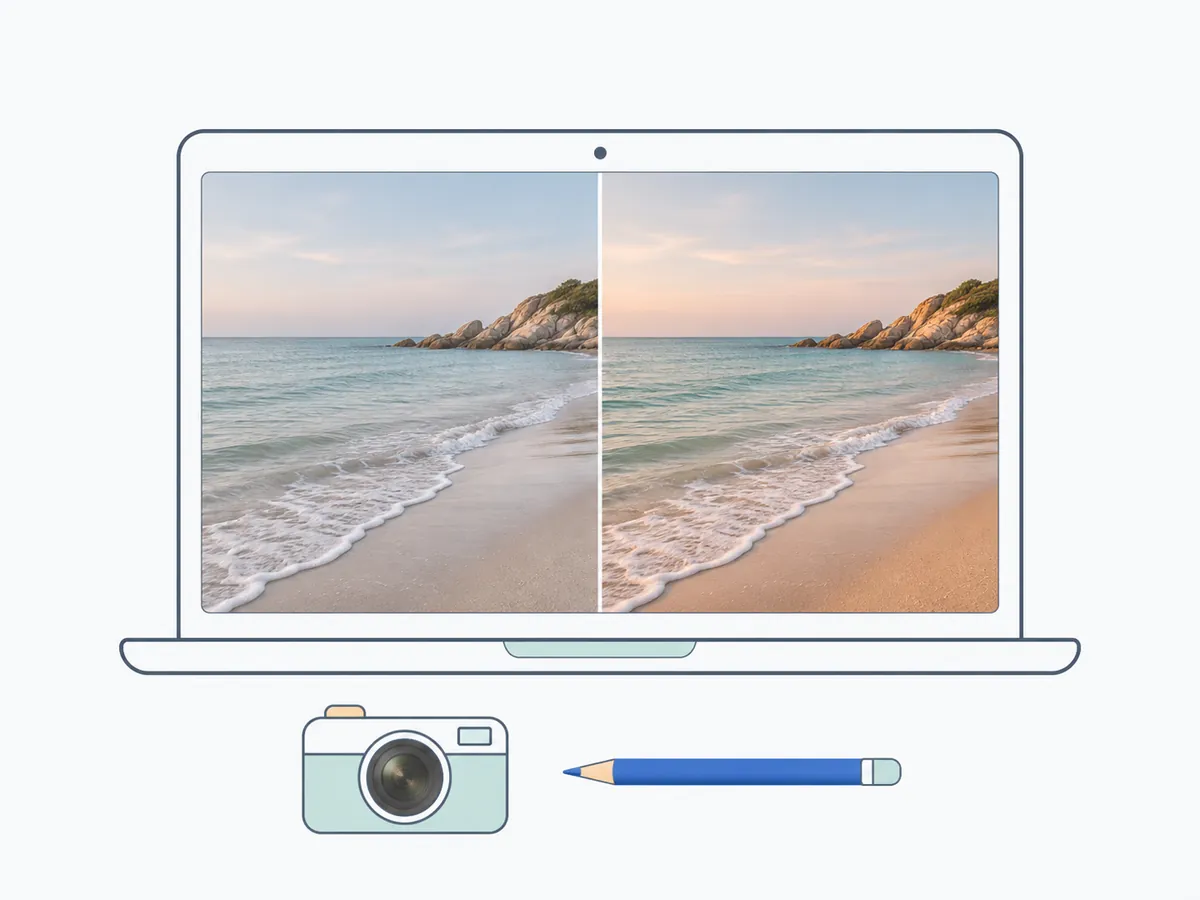
Merge JPEG photos or design drafts into one image for client feedback. Present a few options together, compare edits with the originals, or gather visual references for your next project.


Customer Support Teams
Make a problem or solution easier to explain with screenshots in the right order. Send customers a visual walkthrough, or share the full sequence with a teammate when handing over a support request.


Business Teams
Put related charts, progress photos, and reference images in one place. Share a single JPG in an email, team chat, or presentation when you need to bring colleagues up to speed.
How to Merge JPG Files into One Image
Use this JPG merger to combine JPG files in three steps: add your images, arrange them, and save the result to your device.

Add Your Images
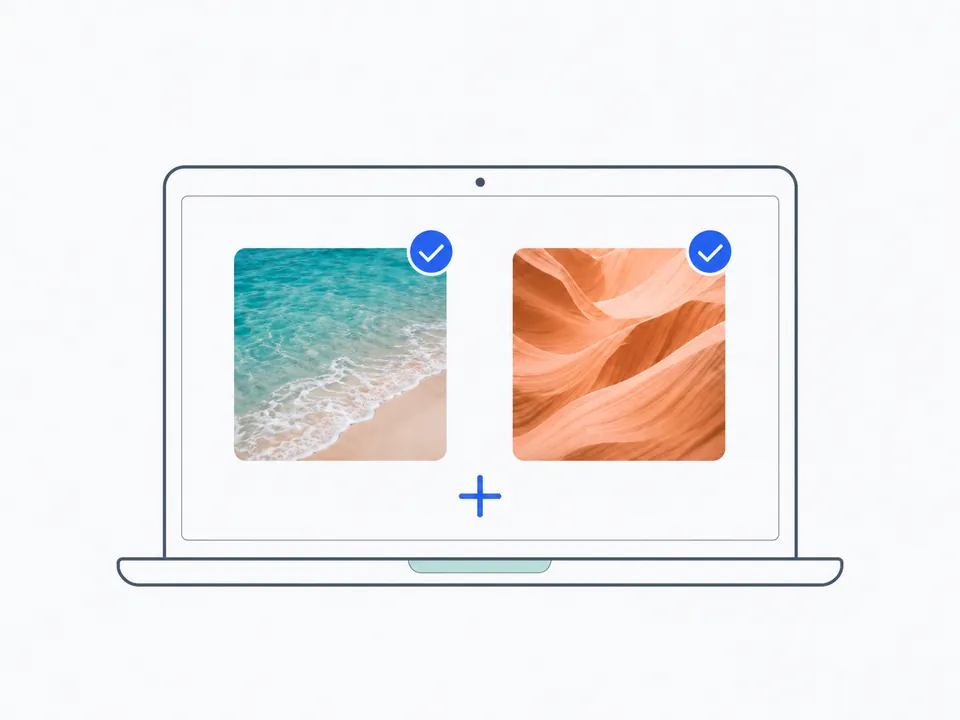
Select two or more JPG or JPEG files from your device. You can include both file types in the same JPG merge.

Choose the Order and Layout
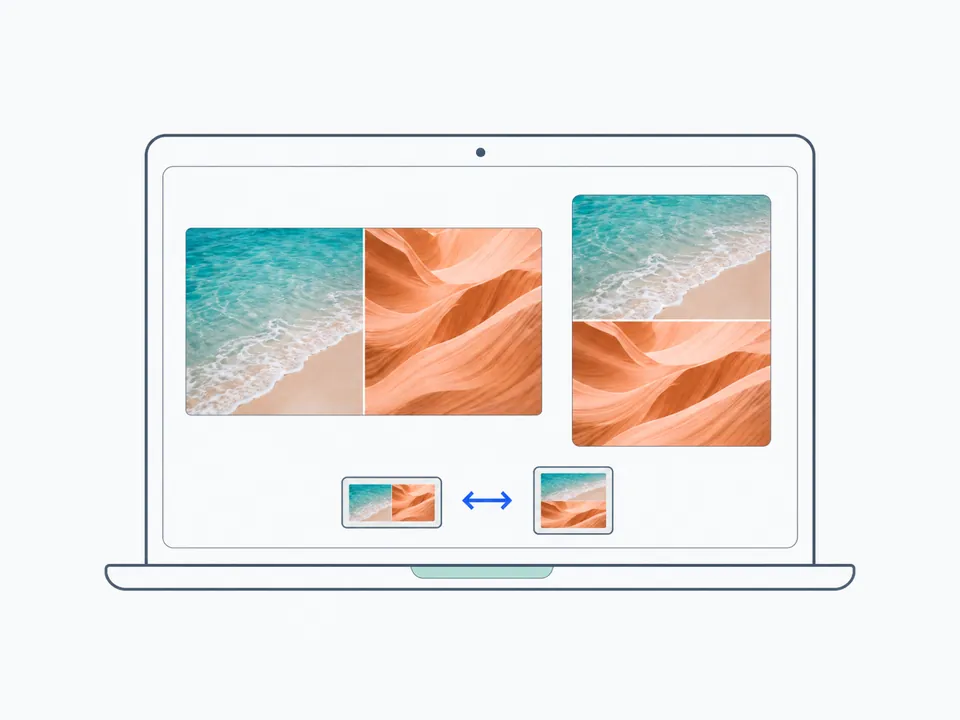
Put your images in the order you want. Arrange them horizontally from left to right, or vertically from top to bottom.

Merge and Download
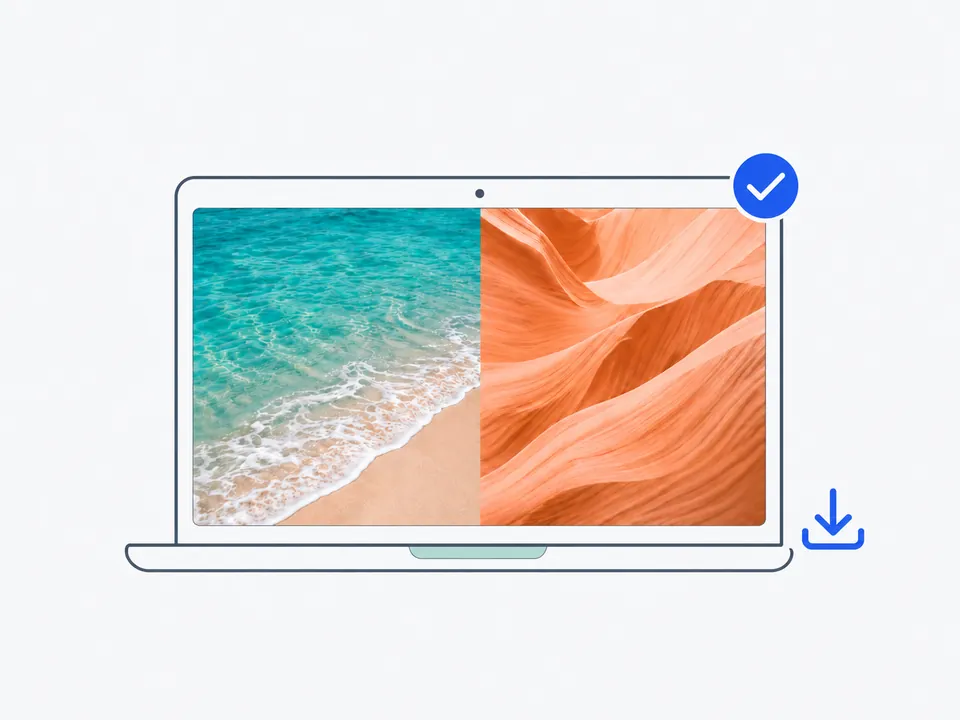
Merge JPG files in your chosen layout and check the result. When you’re happy with how it looks, download the combined image to your device.
What Users Say About Our JPG Merger
See how people use MergeAnything to combine JPG files for class notes, customer conversations, and creative projects.
Alex Morgan
Student
I had photos of several pages of notes and wanted to send them to a classmate. Being able to combine my notes into one JPG kept everything in order and saved me from sending each photo separately.
Sophie Bennett
Online Seller
A customer wanted to compare two colors of the same bag. I put the photos side by side and sent one image in our chat. It made the difference much easier to show.
Daniel Kim
Content Creator
I needed a few screenshots for a short tutorial. Stacking them in order gave me one image I could add to the post, with each step easy to follow.
Priya Patel
Photographer
I wanted to show a client two edits of the same photo. Being able to merge JPEG photos side by side made it easier for them to compare the versions and tell me which they preferred.
Marco Rossi
Customer Support Specialist
When I report an issue to our technical team, I often need several screenshots to explain it. Putting them in one image helps keep the sequence clear without making everyone open separate attachments.
Hannah Lee
Everyday User
I only needed to merge two JPG files and didn’t want to create another account. Being able to do it in my browser, with the photos staying on my device, was exactly what I needed.
Frequently Asked Questions About Merging JPG Files
Find answers about combining JPG and JPEG files, choosing a layout, and saving your finished image, including what to expect from privacy and image quality.
Combine Your JPG Files into One Image
Merge JPG and JPEG images side by side or vertically, right in your browser. Download your finished JPG for free, with no login required.